
MSC Computer Center Remote Access
The MSC Computer Center systems are avaiable for remote access by ASE/COE/EM students and students taking an ASE/COE/EM class.
NOTE: Remote access uses the Remote Desktop Gateway (RDG) service
1. Configure the RDG Client
RDG – Microsoft Remote Desktop Connection for Windows – mstsc.exe
RDG – Microsoft Remote Desktop Client for Mac
RDG – Remmina Guide for Linux – Ubuntu
2. Enter the full name of the computer
Windows
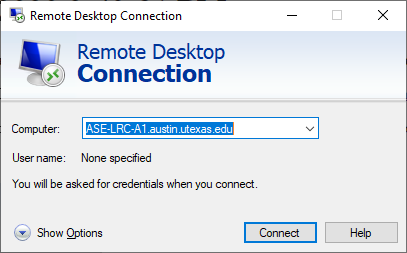
Enter your User Name in the format Austin\<eid>
macOS
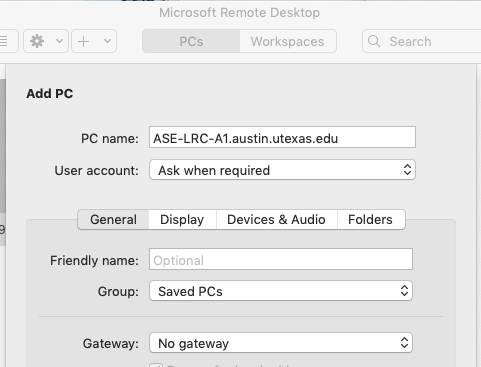
Enter your User Name in the format Austin\<eid>
Computer Names
- ASE-LRC-A1
- ASE-LRC-A2
- ASE-LRC-A5
- ASE-LRC-B3
- ASE-LRC-B4
- ASE-LRC-B1
- ASE-LRC-B2
- ASE-LRC-A4
- ASE-LRC-A6
- ASE-LRC-A3
- ASE-LRC-B5
- ASE-LRC-B6